Longhorn AWS S3 Backup
estimated read time: 5 minutes
Longhorn AWS S3 Backup Setup
Longhorn can use block storage provided by AWS S3. For an explanation of block storage, see IBM's overview. Whilst replicas are excellent for protecting against the loss of a single node, if you're as data-loss-conscious as I am, following the 3-2-1 Backup Rule is essential for any disaster recovery scenario.
Prerequisites
This article assumes you've already followed the steps in my article on setting up Longhorn on K3s.
Create an AWS IAM User
In the AWS Console, search for IAM and select it.
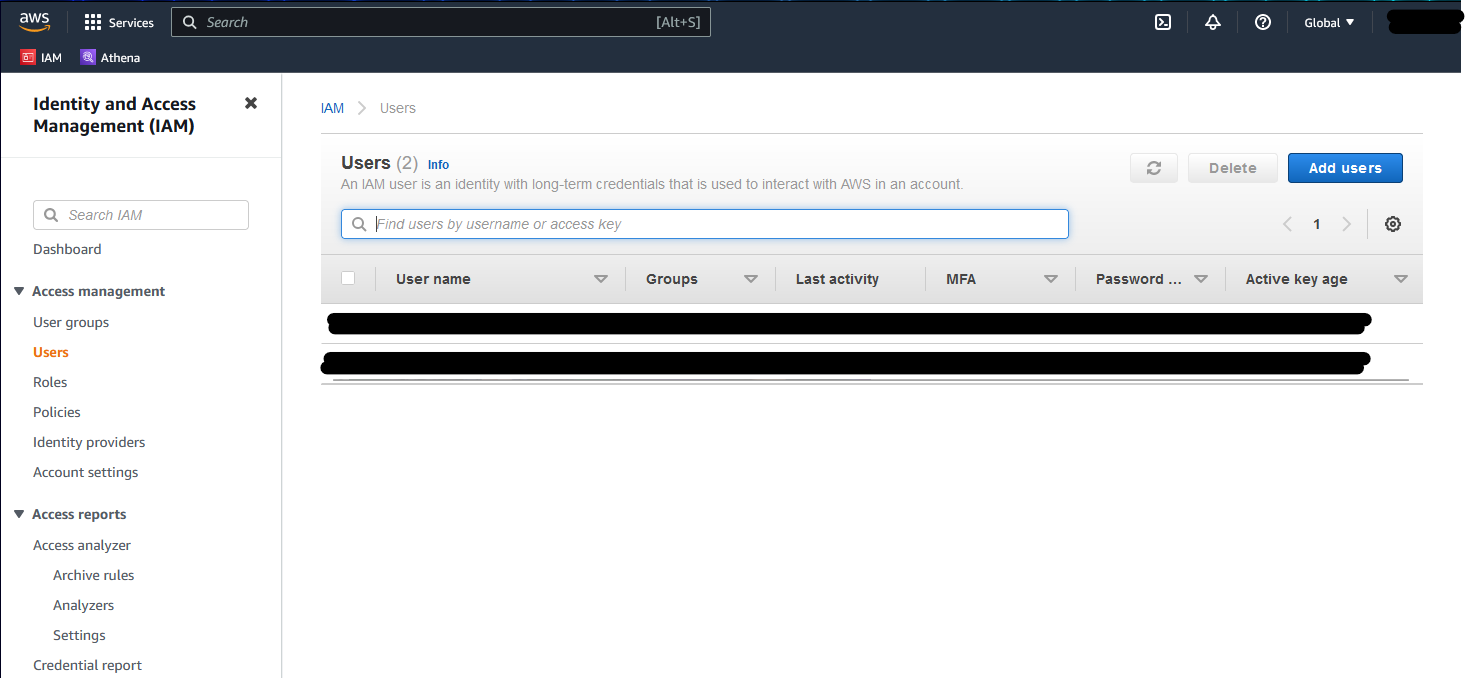
Click Add users in the top right corner.
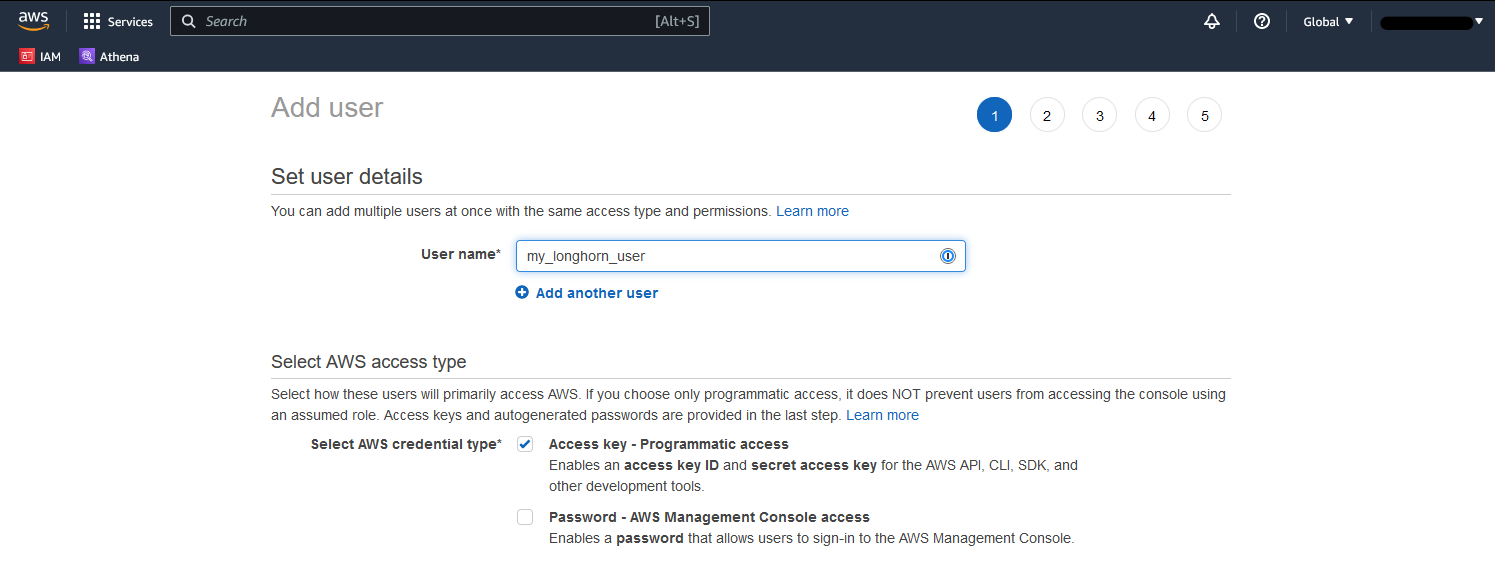
Select Access key - Programmatic access, then click Next.
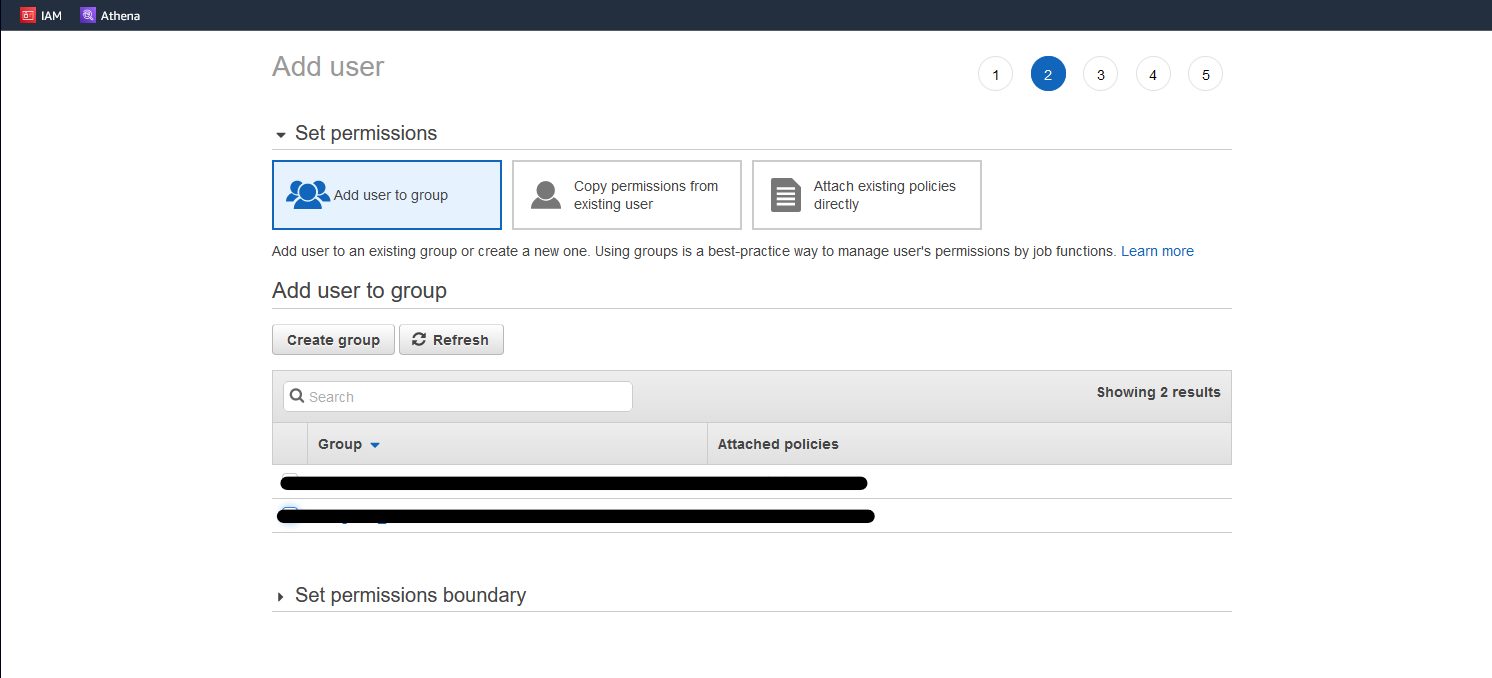
On the Add user to group screen, select Create group.
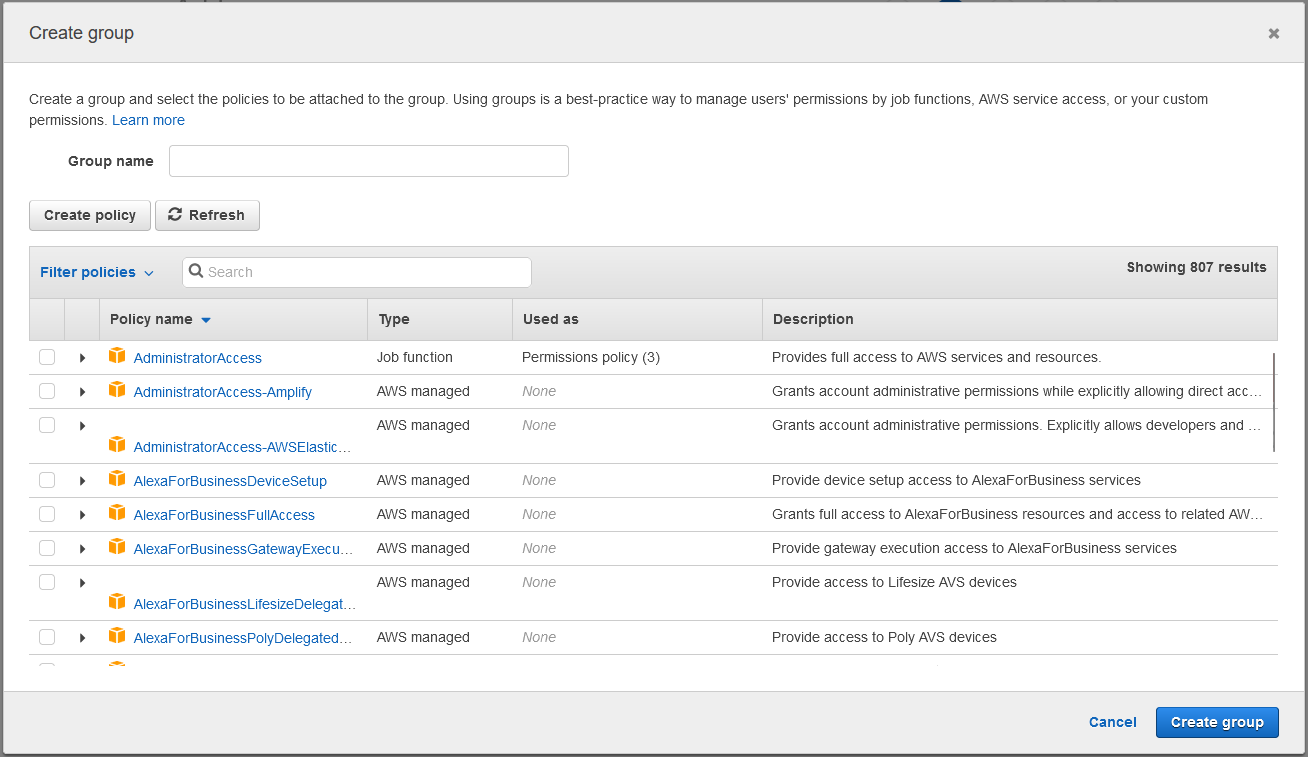
Select Create policy, then choose the JSON tab.
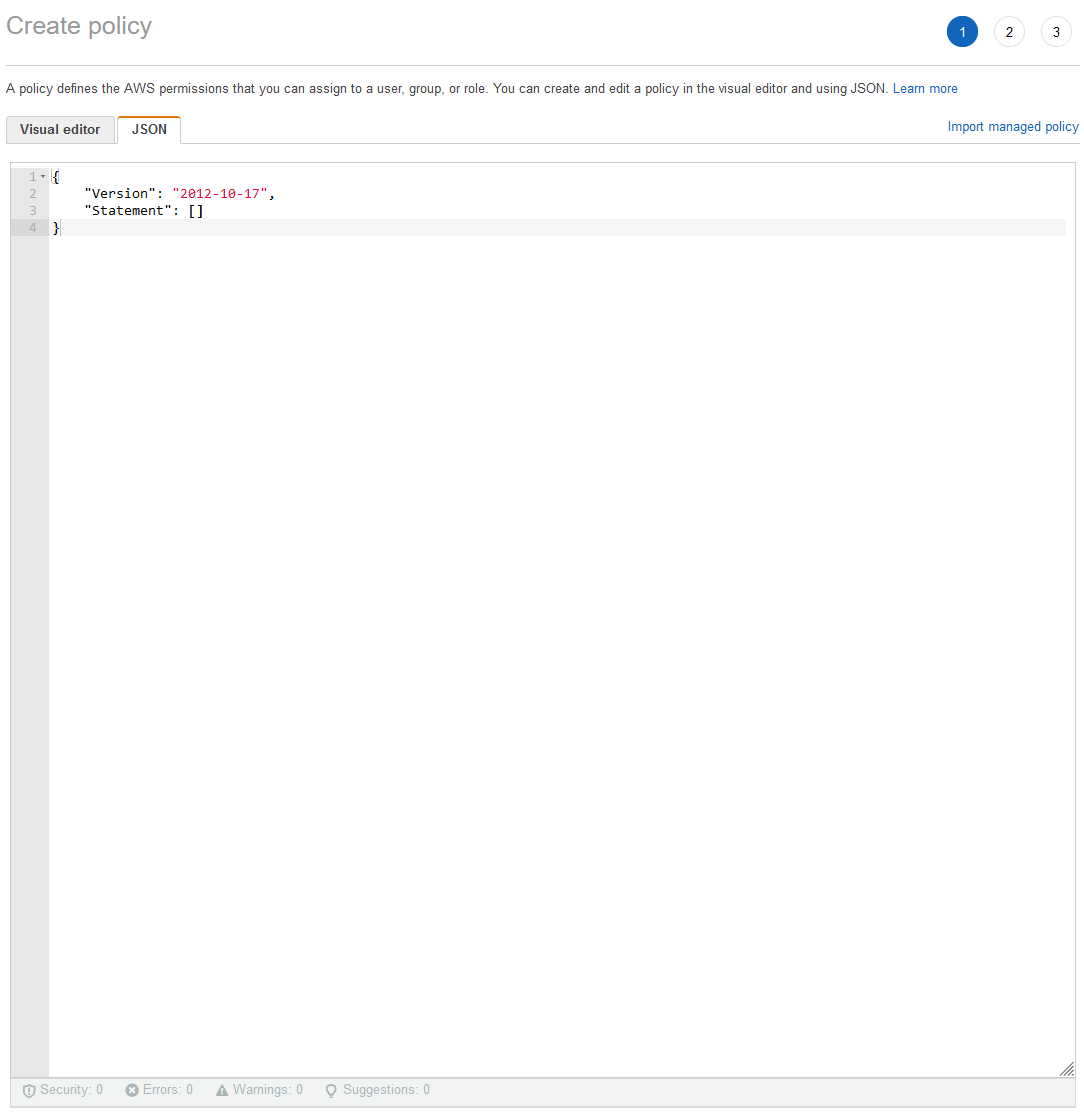
Enter the following policy. At this point, you'll need to decide on a bucket name (see the Create Bucket section below):
{
  "Version": "2012-10-17",
  "Statement": [
    {
      "Sid": "GrantLonghornBackupstoreAccess0",
      "Effect": "Allow",
      "Action": ["s3:PutObject", "s3:GetObject", "s3:ListBucket", "s3:DeleteObject"],
      "Resource": ["arn:aws:s3:::<your-bucket-name>", "arn:aws:s3:::<your-bucket-name>/*"]
    }
  ]
}
Click Create, then download the user's credentials CSV—you'll need this later.
Create a KMS Key
In the AWS Console, search for KMS and select Key Management Service.
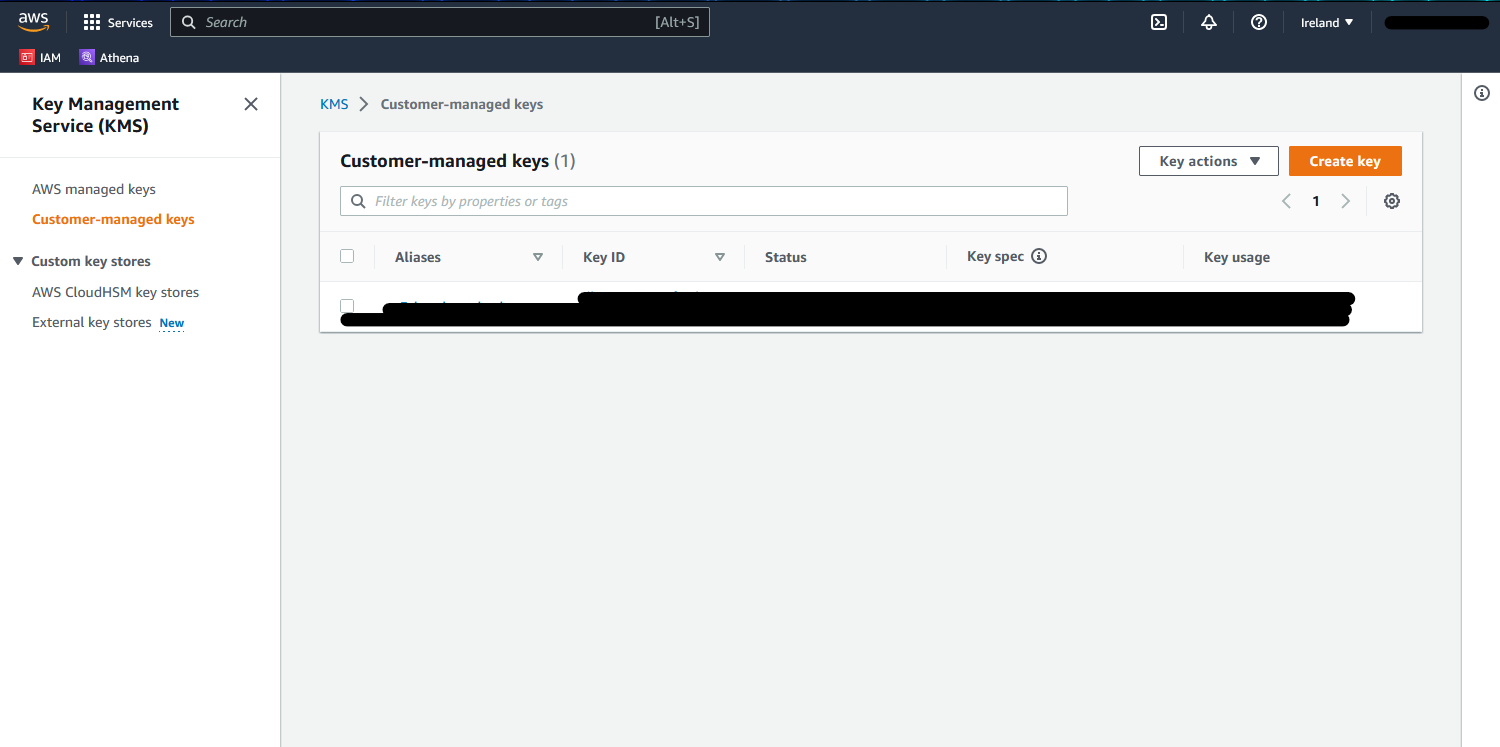
Select Create Key.
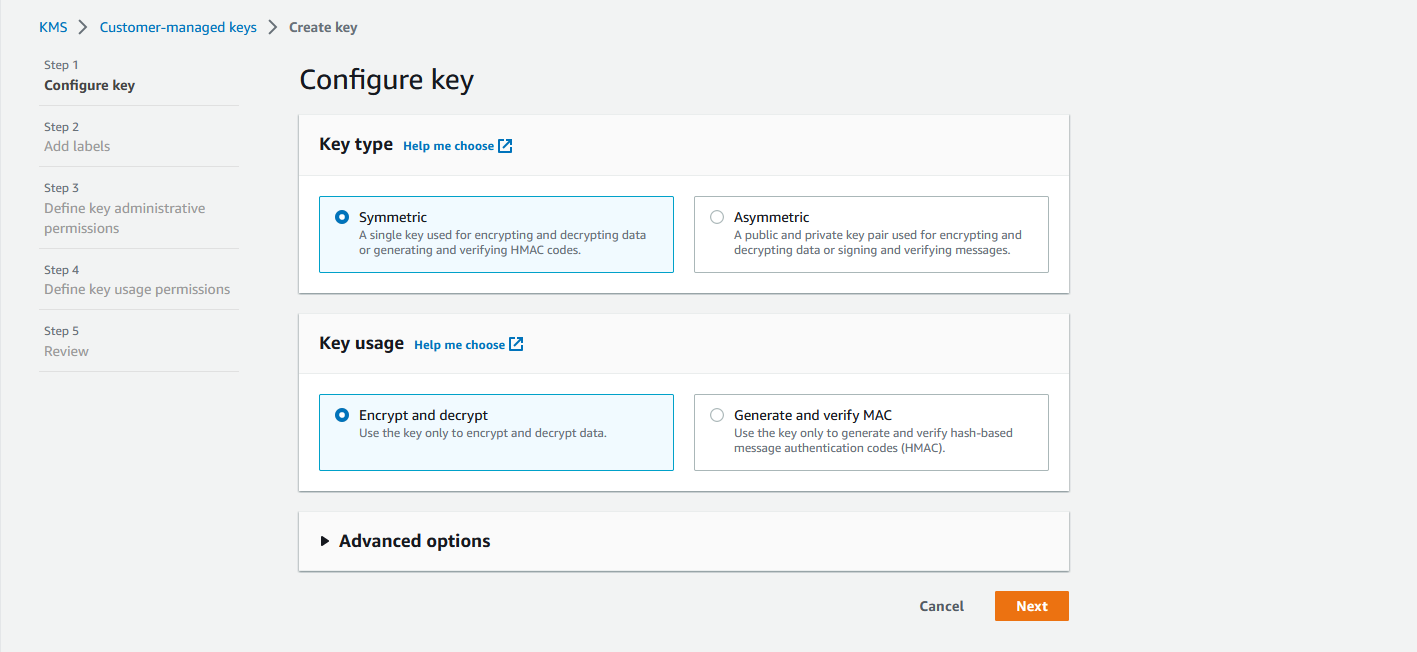
Give the key a memorable alias, such as longhorn-s3-kms.
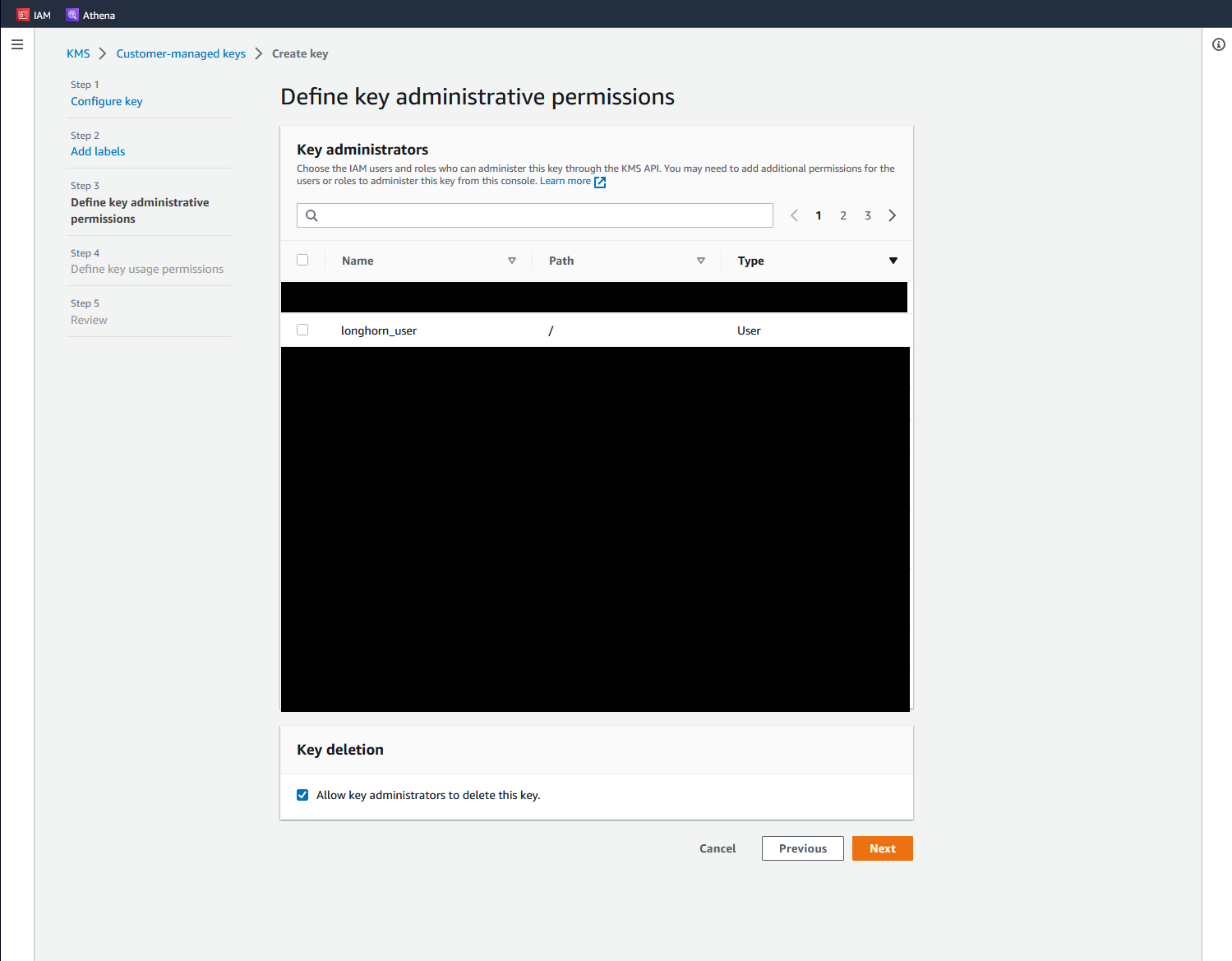
Select your AWS account administrator user.
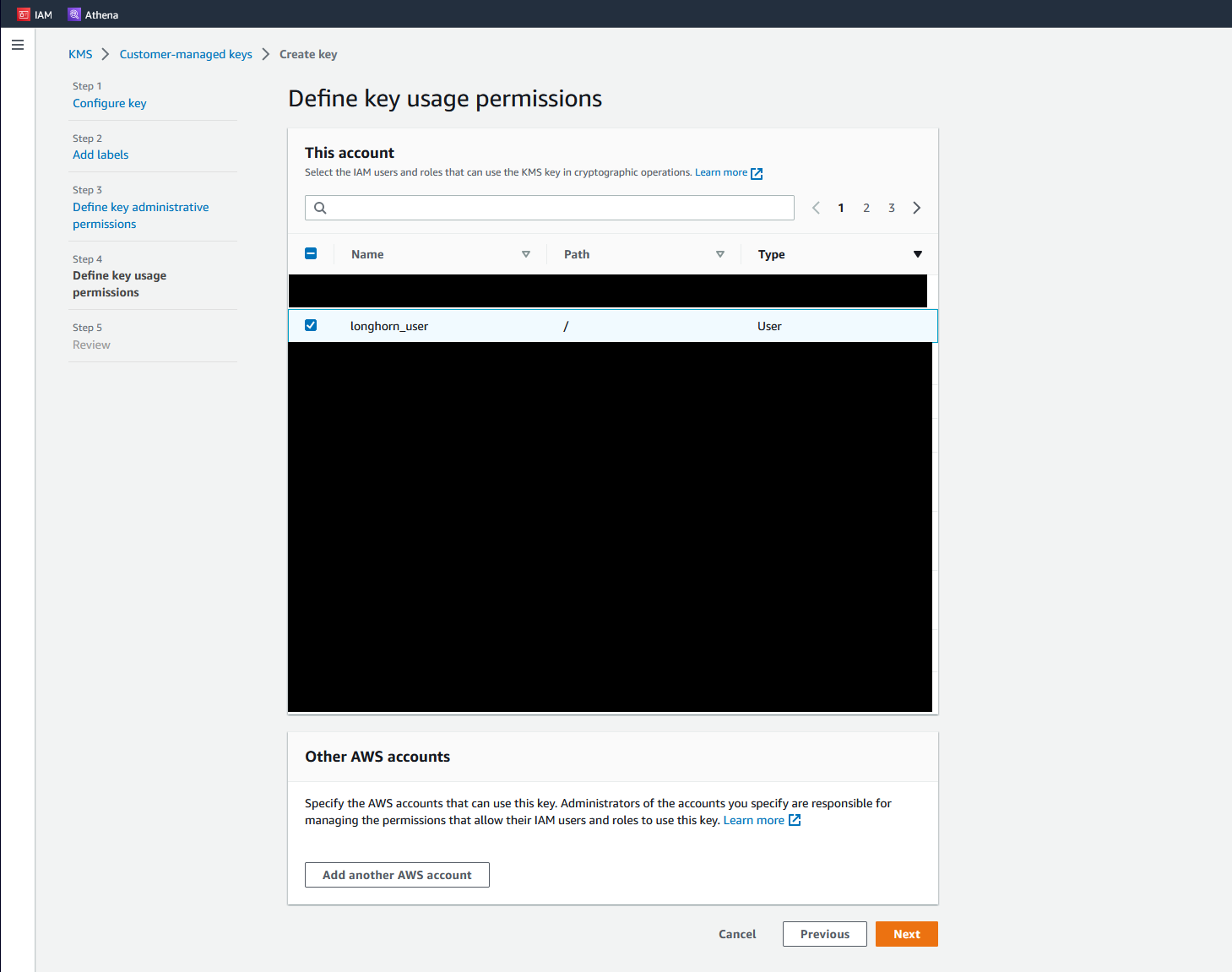
In Define key usage permissions, select the IAM user created in the previous step.
Click Next, review the request, then click Finish.
Create a Bucket
In the AWS Console, search for S3.
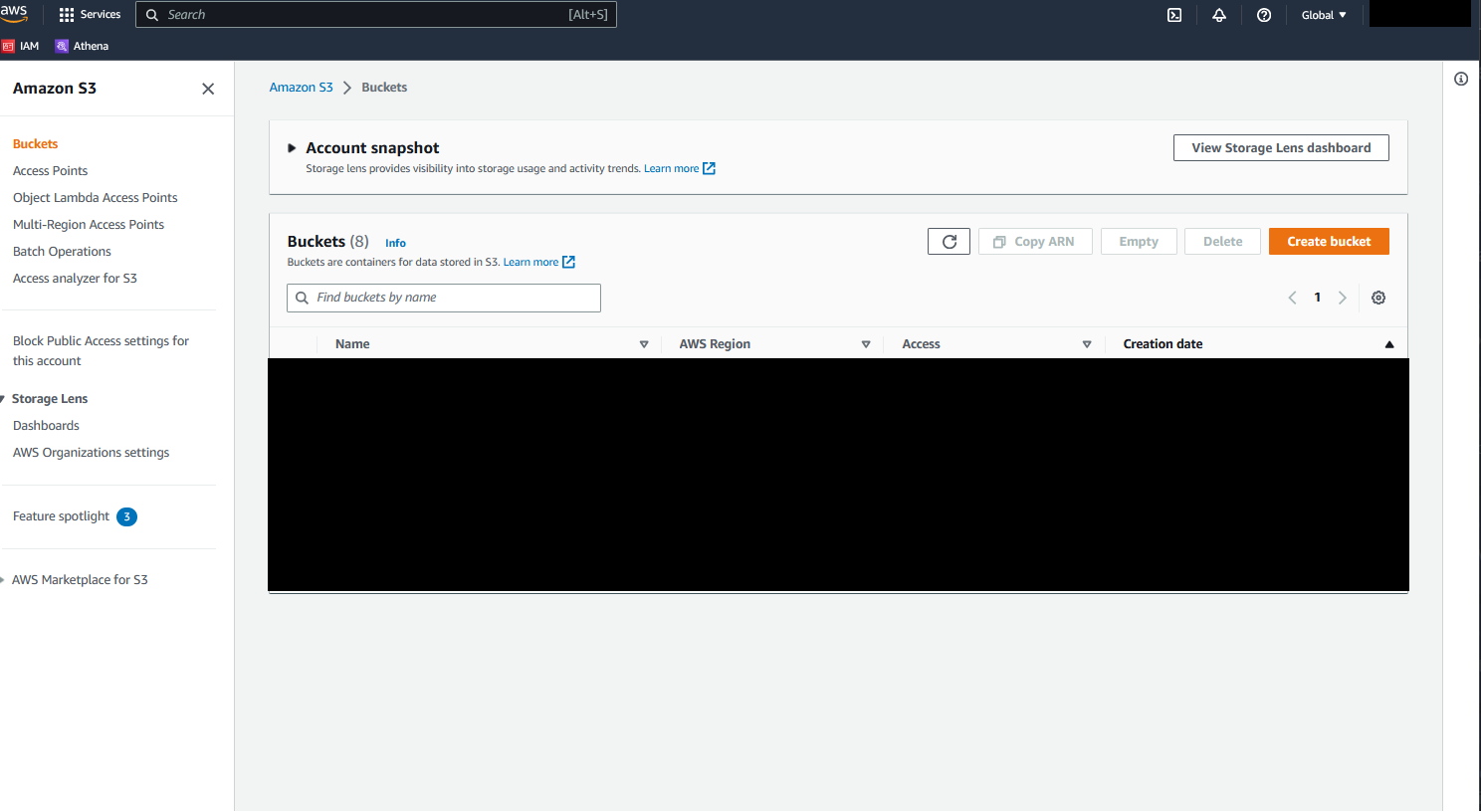
Click Create bucket.
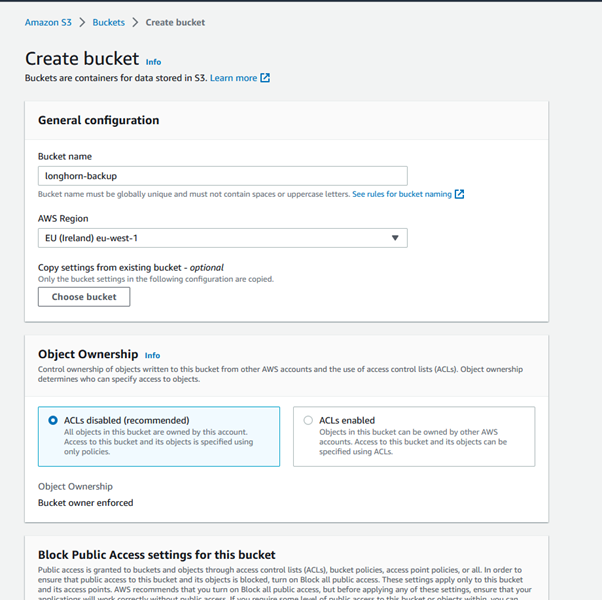
Enter the bucket name you specified in the policy earlier.
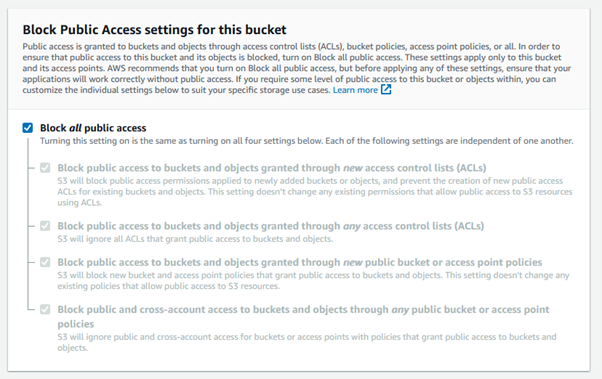
Ensure Block all public access is ticked.
Enable Encryption
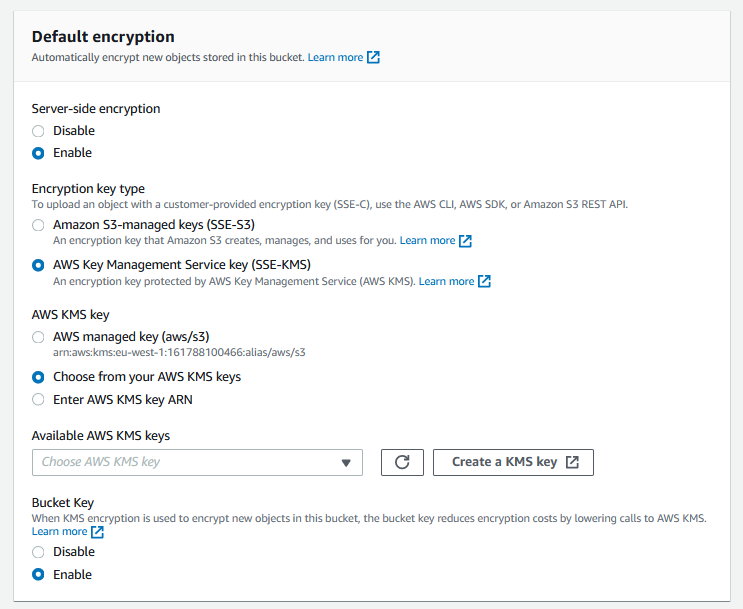
Under Default encryption, tick Enable for server-side encryption.
Select AWS Key Management Service key (SSE-KMS) as the encryption key type.
Choose Choose from your AWS KMS keys and select the KMS key created earlier.
Intelligent Tiering (Optional)
I've included this section because I'm cost-conscious when it comes to cloud services. What starts as a few pounds a month can snowball quickly, especially with multi-gigabyte backups.
This isn't a silver bullet, but it ensures misconfigured backup jobs are caught and archived data moves to the cheapest S3 tiers.
In the AWS Console, navigate to your S3 bucket and select the Properties tab.
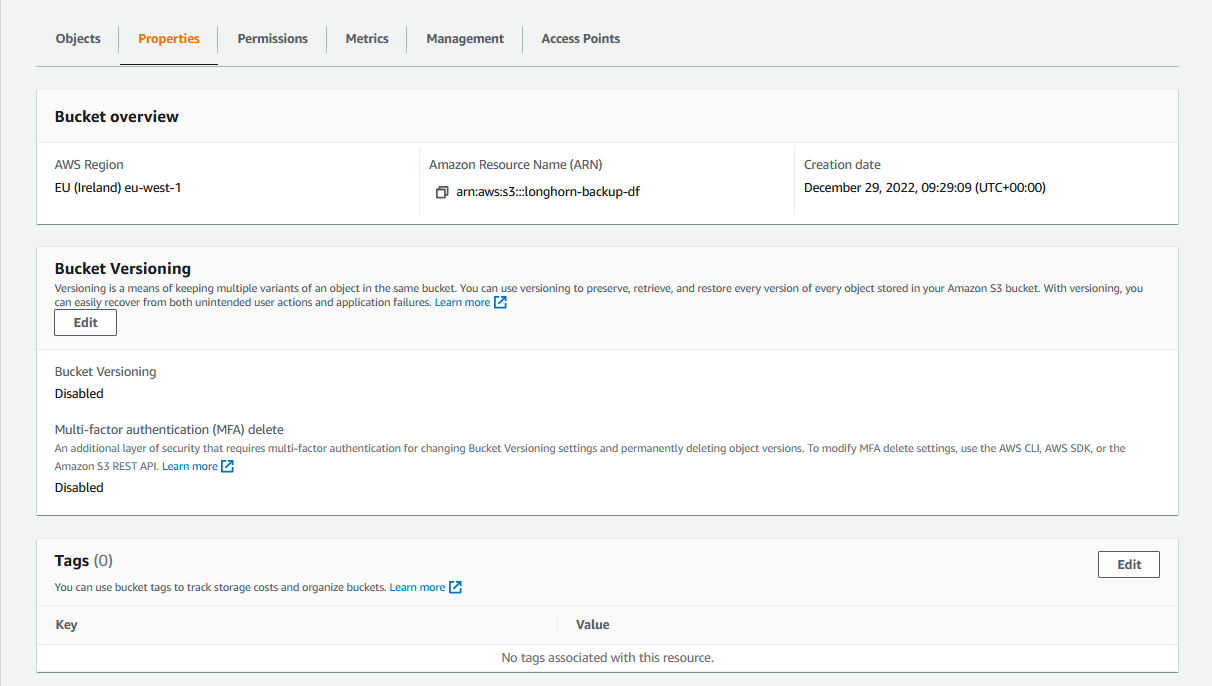
Scroll to Intelligent Tiering.
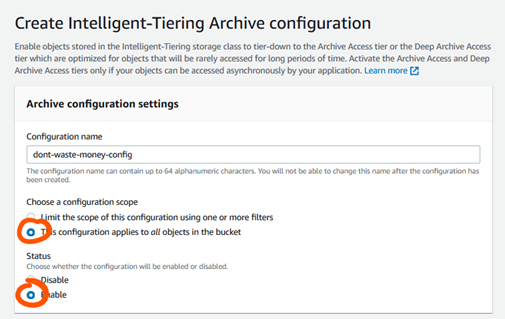
Give the configuration a name and select This configuration applies to all objects in the bucket.
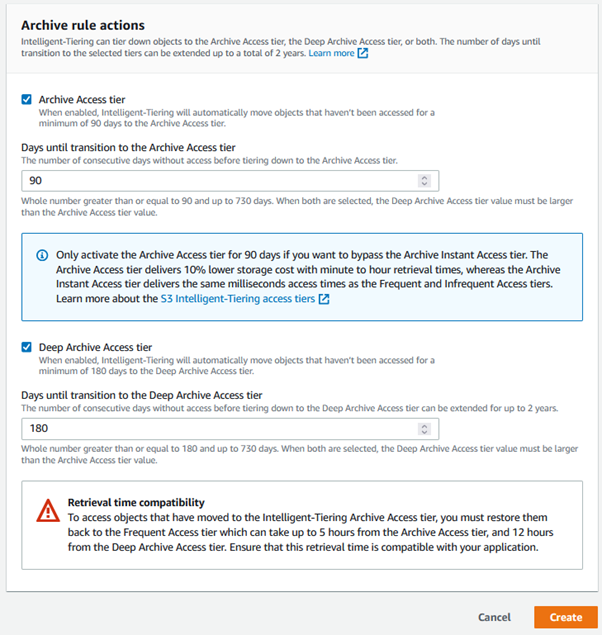
Under Archive rule actions:
- Select
Archive Access tierand set to 90 days (minimum) - Select
Deep Archive Access tierand set to 180 days (minimum)
Click Create.
Setting Up Kubernetes
Create a Kubernetes Secret for Longhorn
Before configuring Longhorn, we need to create a secret for AWS authentication.
Open the CSV file containing your IAM user credentials from earlier. Convert both values to Base64:
echo -n "<value>" | base64
Create both Base64 values for AWS_ACCESS_KEY_ID and AWS_SECRET_ACCESS_KEY.
Create a file called longhorn-aws-secret.yaml:
apiVersion: v1
kind: Secret
metadata:
  name: aws-secret
  namespace: longhorn-system
data:
  AWS_ACCESS_KEY_ID: <IAM Access Key Base64 value>
  AWS_SECRET_ACCESS_KEY: <IAM Secret Access Key Base64 value>
Apply to your cluster:
kubectl apply -f longhorn-aws-secret.yaml
Configure Longhorn Settings
Access the Longhorn admin panel (see the Longhorn setup article).
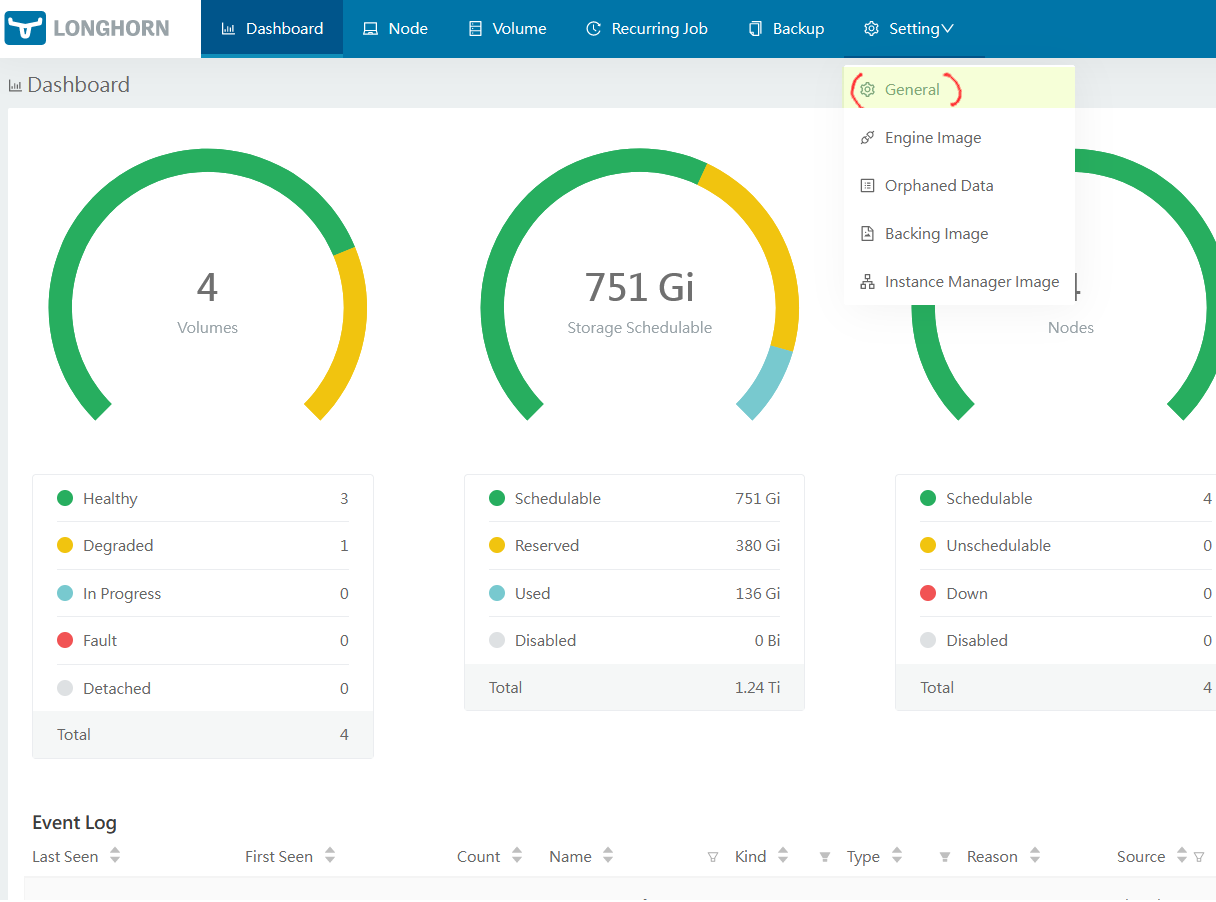
From the web console, click Settings then General.
Scroll to Backup Target and enter your S3 bucket path:
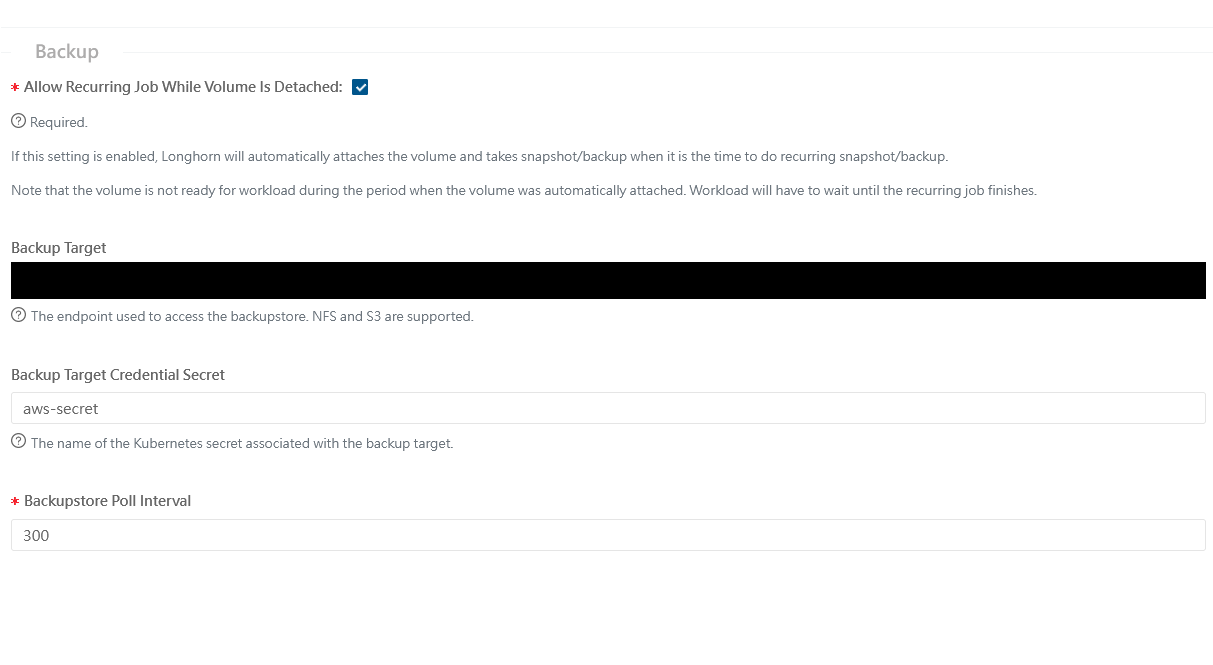
s3://<bucket-name>@<region>/
Note: Both the region and trailing / are required. Triple-check the bucket name and region to avoid debugging issues later.
In Backup Target Credentials Secret, enter aws-secret.
Click Save.
Running Your First Backup
From the Longhorn menu, click Volume.
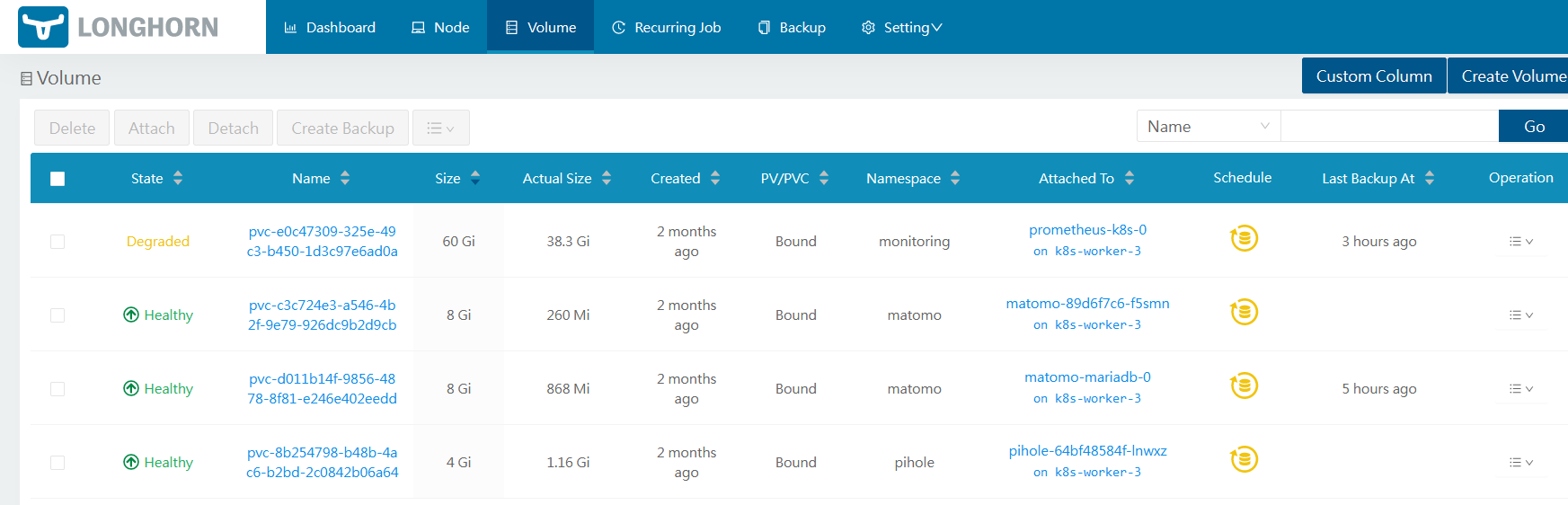
Click on the PVC you want to back up.
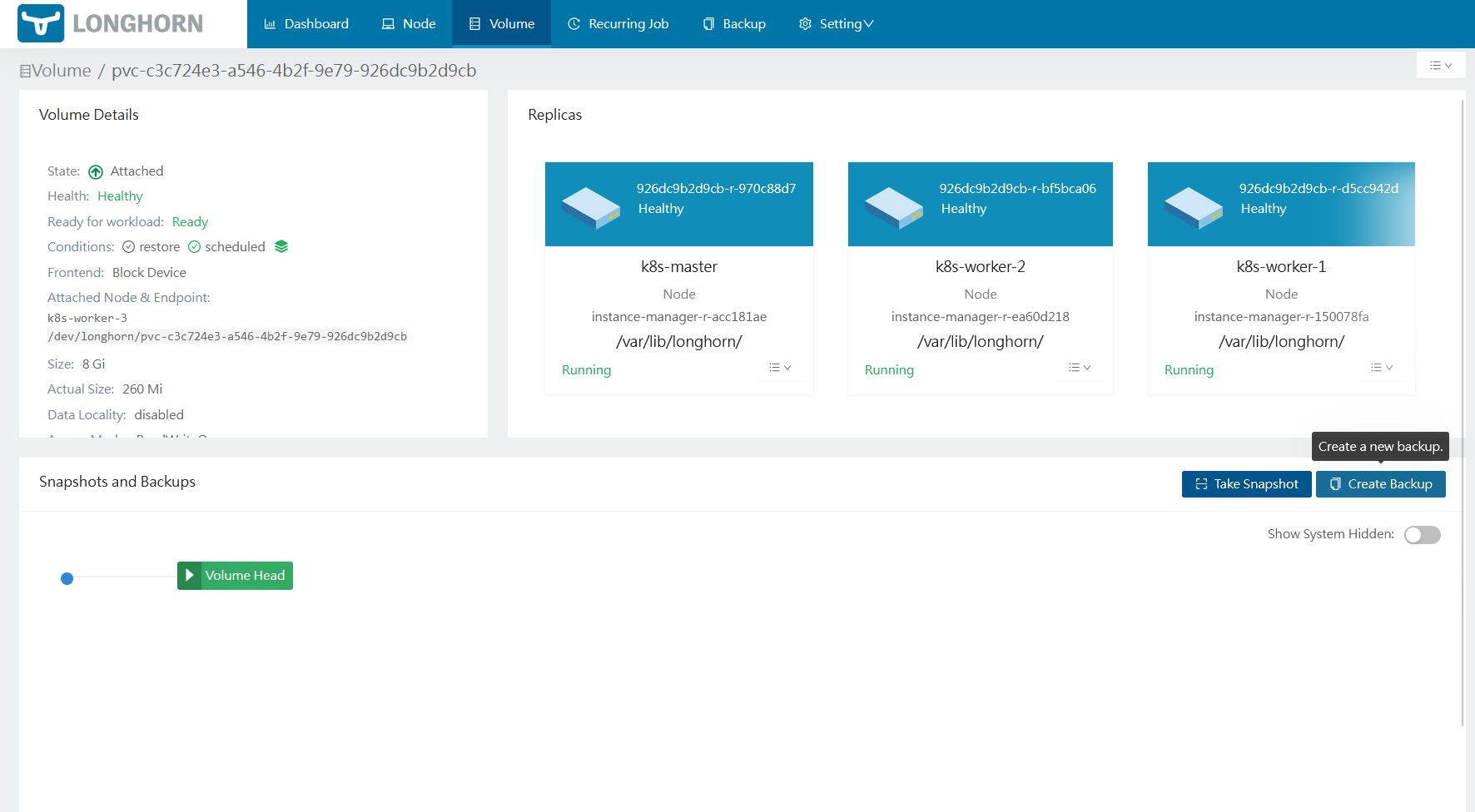
Select Create Backup.
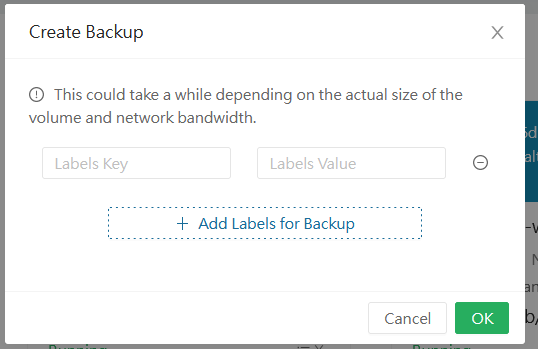
Enter any custom tags. I typically use:
APP: name of the applicationREASON: type of backup (DR, SCHEDULE, etc.)
Depending on size, the backup may take a few hours. Once complete, check in the AWS Console.
Select your bucket and the Objects tab.
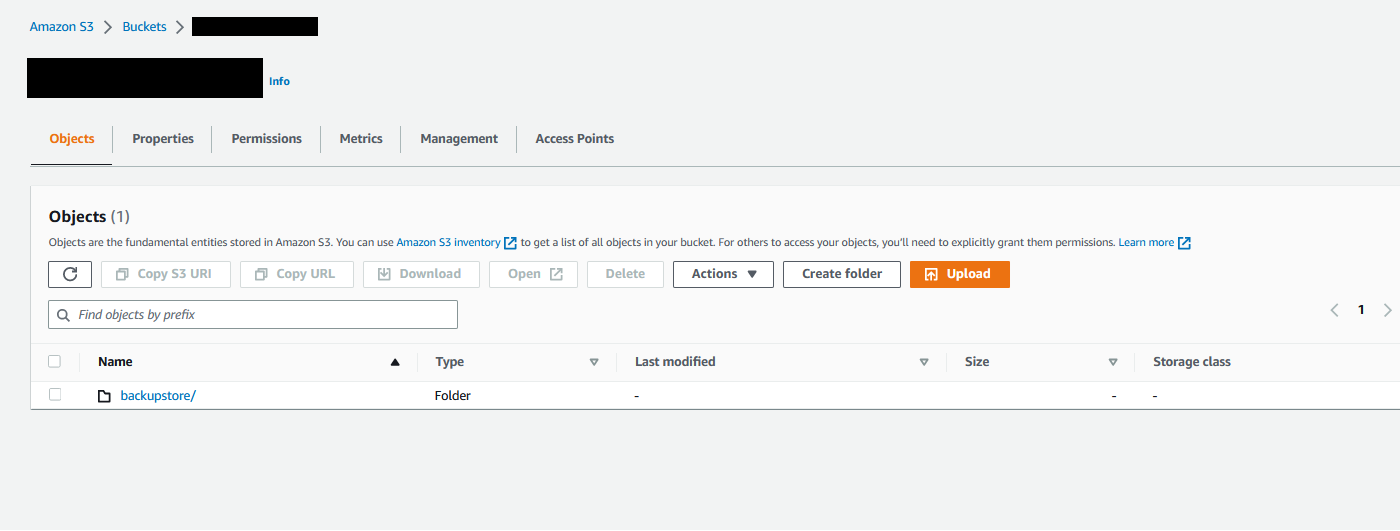
You should see the backupstore/ root directory.
Pi Cluster Series
- Part 1 — Introduction: Pi Cluster
- Part 2 — Setting Up the Cluster
- Part 3 — Persistent Storage with Longhorn
- Part 4 — Offsite Backups with AWS S3 ← you are here
- Part 5 — Load Balancing with MetalLB
- Part 6 — Ingress and TLS with Traefik v3
- Part 7 — Edge Protection with Cloudflare
Further Reading
Related Articles
Blocking AI Scrapers: Protecting Your Content from Unauthorised Training Data
68% of my blog traffic this week was AI scrapers harvesting content for training data. Here's how I'm blocking OpenAI, Anthropic, Meta, and other AI crawlers — and why you should too.
Automating Cloudflare DNS Updates from a Kubernetes CronJob
When my ISP started rotating my residential IP weekly, I stopped updating Cloudflare manually and built a Kubernetes CronJob that does it automatically every 15 minutes.
k3s HA on Raspberry Pi: Zero-Downtime Cluster in 45 Minutes (Multi-Master + MySQL)
Stop single-point failures. Build a production-grade k3s cluster with 3 master nodes, external MySQL, and load balancing—all on budget Pi hardware. Step-by-step guide with troubleshooting.
Setting Up MetalLB on K3s
How to install MetalLB on a bare-metal K3s cluster to get real LoadBalancer services without relying on a cloud provider.