k3s on Raspberry Pi 4 & 5: cgroups, MetalLB, and Real-World Setup
estimated read time: 3 minutes
Preparing the Raspberry Pis
Installing Raspberry Pi OS
- Download the Raspberry Pi Imager tool — video tutorial
- Visit https://www.raspberrypi.com/software/
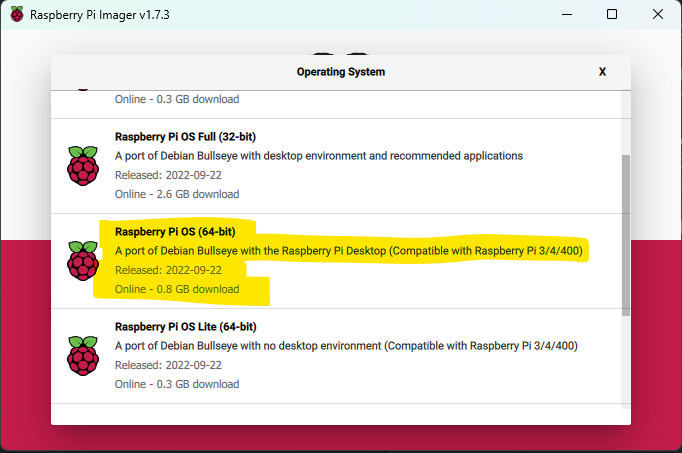
- Choose to install the x64 version of Raspberry Pi OS
- Enable SSH

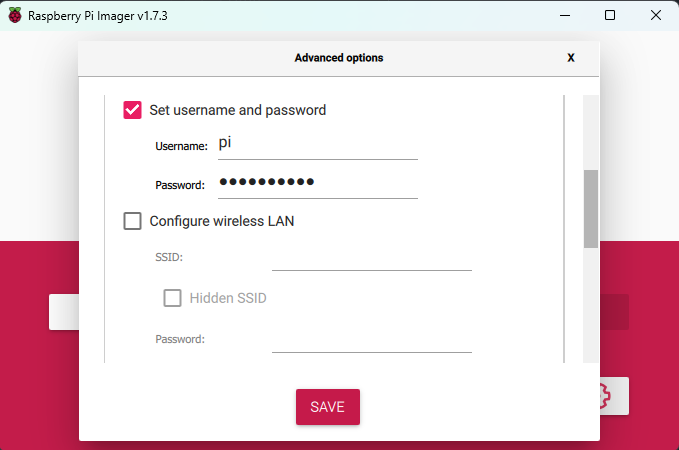
- Set the sudo username and password
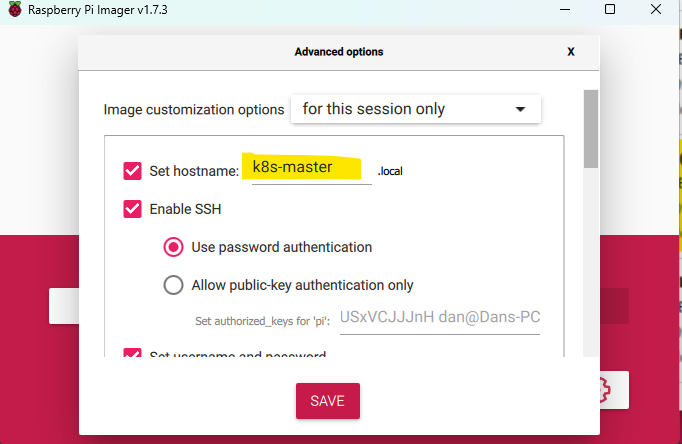
- Configure the hostname
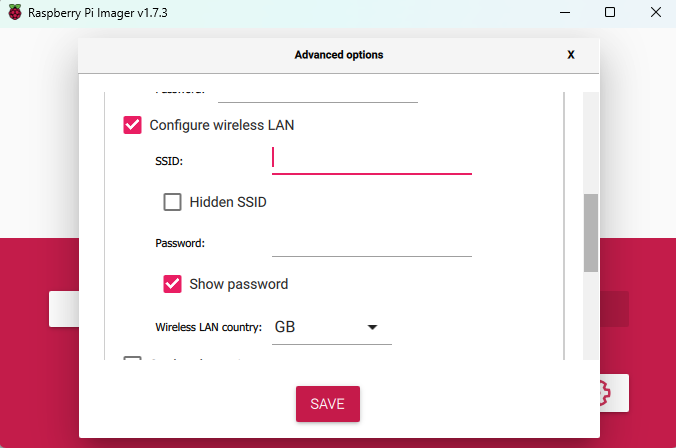
- Configure Wi-Fi (if not using Ethernet)
- Burn the image to the Pi and repeat for each device
K3s Installation
Installing Ansible on Linux / WSL / macOS
Skip this section if you've already got Ansible installed and configured. If not, the easiest method I've found is via pip.
Your package manager will depend on your operating system—in my case, I'm using Ubuntu:
sudo apt-get update
sudo apt-get install -y python3 python3-venv python3-pip
sudo python3 -m pip install ansible
Alternatively, if you'd prefer not to install Ansible globally, you can create a local virtual environment:
cd ~
mkdir ansible
cd ./ansible
python -m venv ./local
source ./local/bin/activate
python3 -m pip install ansible
This creates a local directory containing Ansible and its dependencies. The source command attaches it to your current terminal session's path. Note that you'll need to run source ./local/bin/activate for each new terminal session.
Installing K3s via Ansible
- Clone the k3s-ansible repository
- Update the
hosts.inifile with your master node (or master and workers if you have multiple Pis) - Run the playbook:
ansible-playbook site.yml
Installing and Configuring kubectl
Once the Ansible script has completed, you'll need to copy the kubeconfig file from the master node. The easiest way to do this is via SCP:
mkdir ~/.kube
scp pi@<master_node_ip>:/home/pi/.kube/config ~/.kube/config
Next, install kubectl:
sudo apt-get update
sudo apt-get install -y ca-certificates curl apt-transport-https
sudo curl -fsSLo /etc/apt/keyrings/kubernetes-archive-keyring.gpg https://packages.cloud.google.com/apt/doc/apt-key.gpg
echo "deb [signed-by=/etc/apt/keyrings/kubernetes-archive-keyring.gpg] https://apt.kubernetes.io/ kubernetes-xenial main" | sudo tee /etc/apt/sources.list.d/kubernetes.list
sudo apt-get update
sudo apt-get install -y kubectl
For alternative installation methods, see the Kubernetes documentation.
Once installed, verify kubectl is working:
kubectl get pods -n kube-system
Alternative Management Tools
For those who prefer a more visual management experience, here are some excellent GUI and terminal tools:
Rancher
- Website: https://www.rancher.com/
- GitHub: https://github.com/rancher/rancher
K9s
- Website: https://k9scli.io/
- GitHub: https://github.com/derailed/k9s
Pi Cluster Series
Related Articles
Blocking AI Scrapers: Protecting Your Content from Unauthorised Training Data
68% of my blog traffic this week was AI scrapers harvesting content for training data. Here's how I'm blocking OpenAI, Anthropic, Meta, and other AI crawlers — and why you should too.
Automating Cloudflare DNS Updates from a Kubernetes CronJob
When my ISP started rotating my residential IP weekly, I stopped updating Cloudflare manually and built a Kubernetes CronJob that does it automatically every 15 minutes.
k3s HA on Raspberry Pi: Zero-Downtime Cluster in 45 Minutes (Multi-Master + MySQL)
Stop single-point failures. Build a production-grade k3s cluster with 3 master nodes, external MySQL, and load balancing—all on budget Pi hardware. Step-by-step guide with troubleshooting.
Setting Up MetalLB on K3s
How to install MetalLB on a bare-metal K3s cluster to get real LoadBalancer services without relying on a cloud provider.